
To run a newsletter with a welcome sequence on your own server, use self-hosted email automation software such as Mimeo. Your site's signup form tells your Mimeo about each new reader. A flow tags them and starts your welcome sequence, with every email scheduled the moment they join and sent through your own Postmark or Resend account. You build it in the dashboard or have your agent build it.
A signup on your site starts the welcome
Your signup form stays on your own site. Each signup reaches your Mimeo as an opt-in event, an "event" being Mimeo's word for something that happened: the reader's email, name, any tags and which form they used. It adds the reader, or updates them if they're already on your list.
A flow listens for signups from that form, tags the reader newsletter and starts your welcome sequence, which schedules every welcome email at once. Signups and orders in your own app or store work the same way; see Send email when someone signs up or buys.
Before you start
- Your Mimeo, running on your server (run it on your own server).
- A sending provider: your own Postmark or Resend account, or the built-in test provider, which delivers nothing, while you build.
- A signup form on your site. Your agent connects it to your Mimeo.
- For the agent tab: Claude Code or Codex, working in your manager repo (Getting yours).
Steps
Both tabs build the same welcome: three emails over five days, a sequence called Newsletter welcome, and a flow that starts it for one form.
Build it in Mimeo
1 Write your welcome emails
Three short emails do the job: a hello, your best work, and what to expect.
Go to Content → Library and click New email for each. Day 0: what they signed up for. Day 2: your best piece. Day 5: what to expect and how often (welcome series has more). Click Send test to see each in your own inbox.
2 Build the welcome sequence
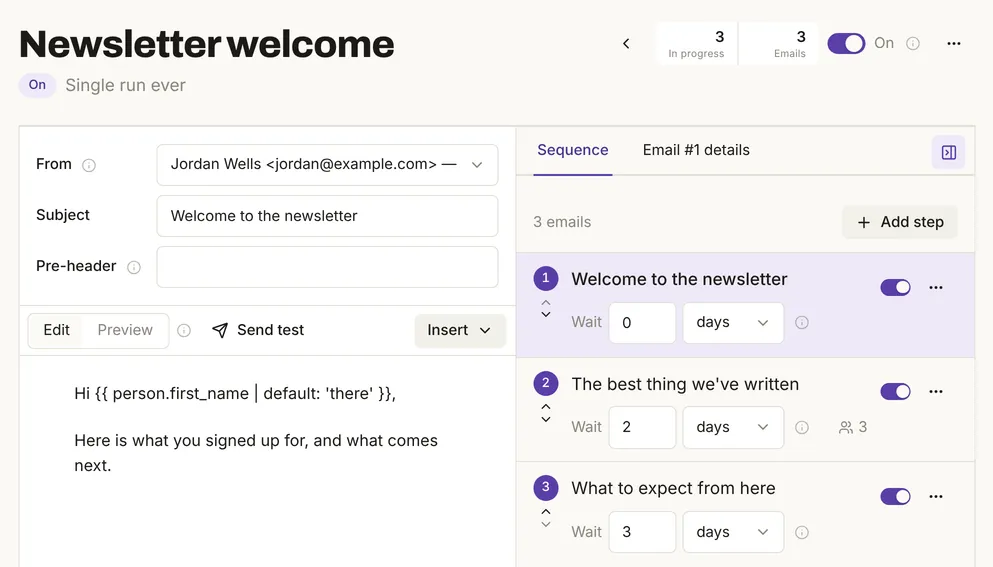
Go to Content → Sequences, click New sequence and name it "Newsletter welcome". For each email, click Add step, pick Use an email from your library, choose the email and Use the library email directly, set Wait to 0, 2 and 3 days, and click Add as a draft. Each wait counts from the step before, so the emails land on days 0, 2 and 5.
New steps start as drafts and a new sequence starts off, so nobody gets something half-built. Turn on each step. Under … → Settings…, set Repeat runs to Single run ever. Then turn the sequence on.
3 Create a token for your signup form
Your site needs a token, a password for talking to your Mimeo, and it must stay on your server.
Click your email address at the bottom of the sidebar, choose Settings, then Agents & API → API tokens. Name the token after the form ("Newsletter signup form") and click Create token. It is shown once.
Every token has full access, including sending, so treat it like a password and give each form its own, which you can revoke.
4 Connect your form to your Mimeo
Ask your agent to connect your signup form, so each signup reaches your Mimeo with the reader's email, name, any tags and the form's name, here newsletter_footer. Opt-in intake has the details for your agent.
In the test, the reader appeared in People with the newsletter tag and the page they signed up on.
5 Build the flow that starts the welcome
The flow decides who gets the welcome: people who sign up on this form.
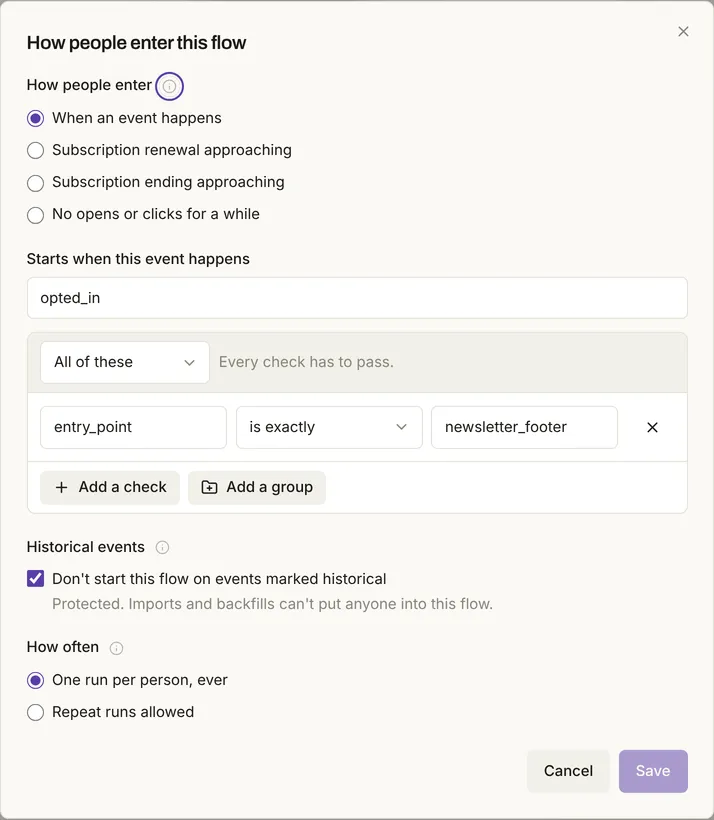
Go to Automation → Flows, click New flow, name it "Newsletter welcome", pick Single run ever, and click Create draft. On the Flow begins box, click Entry rules. Set Starts when this event happens to opted_in, click Only when a detail matches, and set entry_point is exactly newsletter_footer. Leave Don't start this flow on events marked historical checked, and click Save.
Then use Add a step here to add an Add tag step for newsletter and a Start sequence step for Newsletter welcome.
6 Rehearse it, then make it live
A rehearsal shows what the flow would do for a real person, without sending anything.
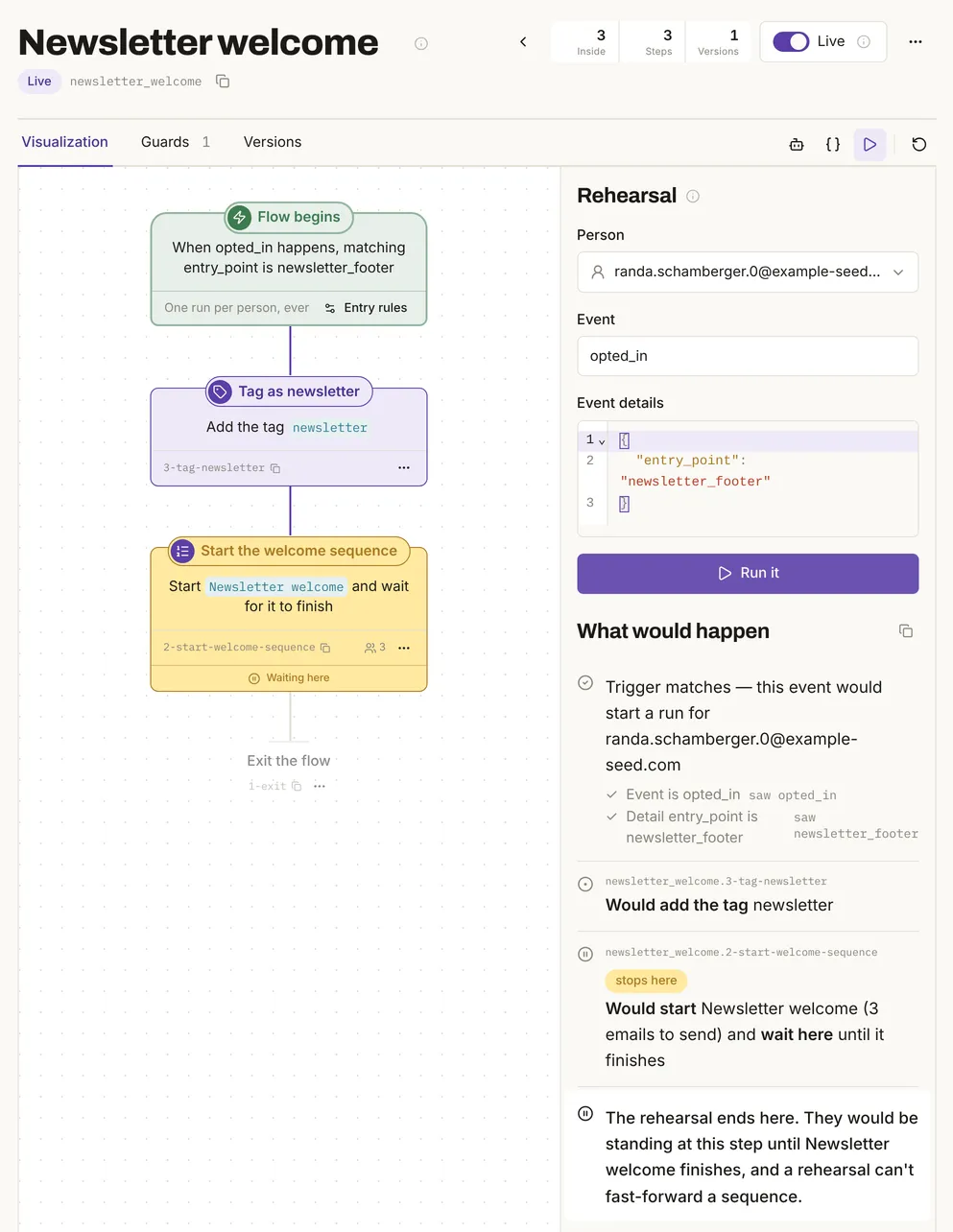
Click Rehearse it, pick someone on your list, and click Run it. For the footer form, it said it would add the tag and start Newsletter welcome with 3 emails. For another form, it said nothing would happen. Then click Make it live and confirm.
More on rehearsals: test a flow before it sends.
7 Sign up and check the schedule
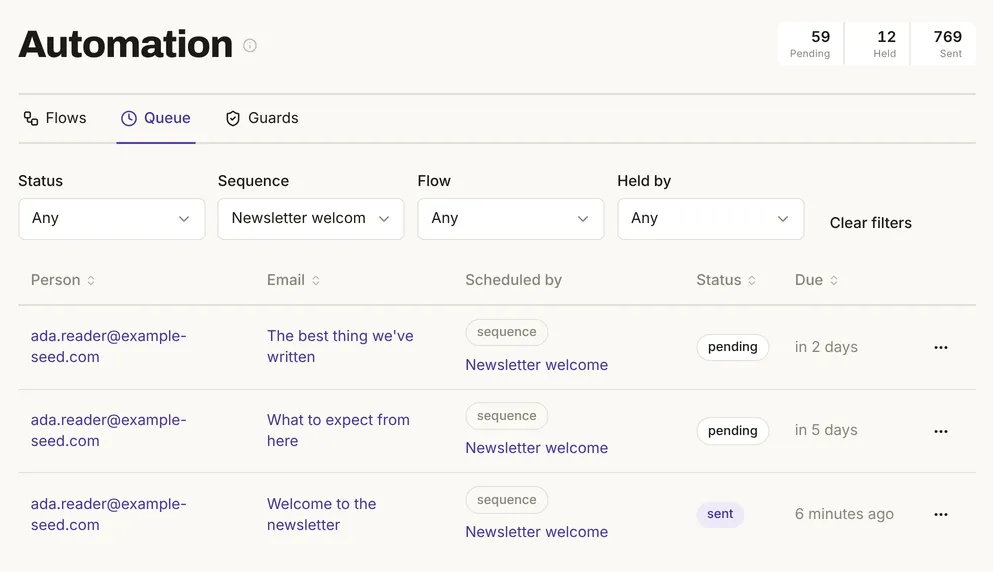
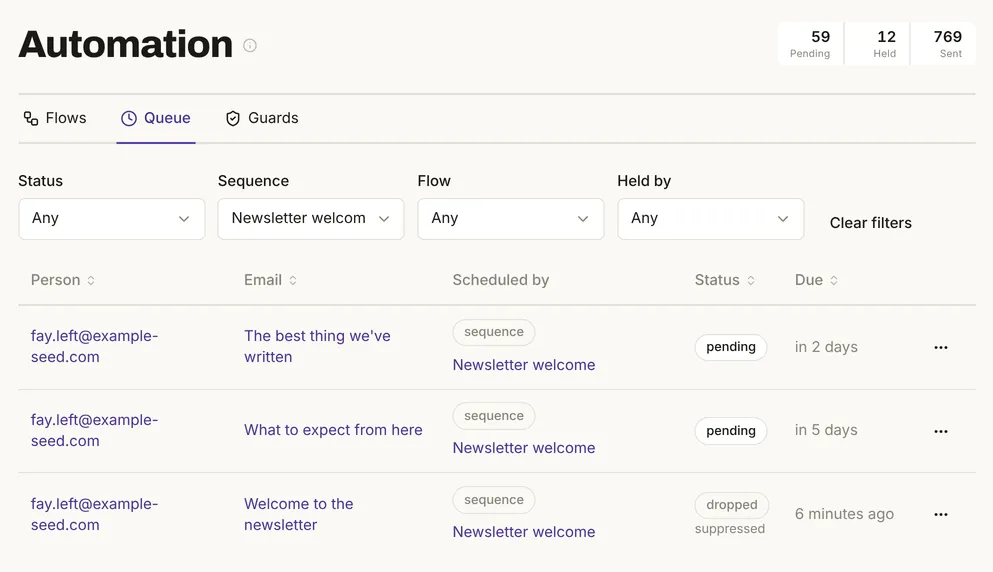
Sign up on your own form, then go to Automation → Queue and set Sequence to Newsletter welcome. In the test, the whole welcome was scheduled the moment the signup arrived, and the first email went out within a minute.
Build it with your agent
1 Write the welcome emails
Write a three-email welcome for my newsletter: one today, one in 2 days, and one 3 days after that. Show me the drafts before you push them.
What to look for: three emails, each with a subject and a short body, waiting for your yes.
2 Build the sequence and the flow
Build a sequence called Newsletter welcome from those three emails, single run ever, and a flow that starts it when someone opts in on the newsletter_footer form and tags them newsletter. Don't make the flow live yet.
What to look for: waits of 0, 2 and 3 days, and a draft flow that starts only for the newsletter_footer form.
3 Create the token yourself
Create the form's token by hand under Settings → Agents & API → API tokens, as in the other tab. Keep it out of the chat.
4 Connect your form
Add a handler to my site's signup form that sends the opt-in to Mimeo, with the form name newsletter_footer, reading the token from an environment variable.
What to look for: the change made in your site, not your manager repo, with the token never in the page. The opt-in intake docs and the API tell your agent the rest.
5 Rehearse, then make it live
Dry-run the newsletter welcome flow for me@mydomain.com signing up on the footer form, and tell me what would happen.
What to look for: the trigger matching, the tag, and the sequence starting with 3 emails. Then:
Make the newsletter welcome flow live.
The MCP server covers flows, sequences and rehearsals for your agent.
A second signup gets no second welcome, and an unsubscribe always wins
- The same address again starts nothing: with Single run ever, a reader gets the welcome once.
- A reader who unsubscribed and signs up again stays unsubscribed. Their welcome emails are dropped as they come due (unsubscribing and resubscribing, never email people who unsubscribed, bounced or complained).
- A signup from another form starts nothing.
Bringing your existing list over welcomes nobody: imports count as history and the flow ignores history (migrate from Mailchimp or Kit, CSV import).
Add a confirmation step if you want double opt-in
Mimeo has no confirm switch; a flow sends the confirmation and waits for the click.
- Make the flow's first step a Send email step with your confirmation email.
- Add a Gate that waits for a click in that email, with an expiry such as 3 days.
- When they click, tag them
confirmedand start the welcome sequence. - When it expires, end the flow. Nothing more is sent.
In the test, the reader who clicked got the welcome and the other left after 3 days. More: double opt-in and gates.
Send each issue as a broadcast
Make a segment of people tagged newsletter and send each issue as a broadcast to it. To keep a promotion out of someone's welcome, one guard can hold it until they finish (keep broadcasts from interrupting a sequence).
Limits
- Your form needs your server, or a form tool that can keep a secret, because the token must stay out of the browser.
- Tested on one local install with the test provider: no real inbox or click, and signups sent by hand. The agent prompts weren't run.
When not to use this
Facts, checked
Tested on one local install on November 16, 2026, with demo data on example-seed.com and no real email sent. Days 2 and 5 were played out by moving the clock.
| Fact | Value | Source | Checked |
|---|---|---|---|
| Release tested | Mimeo 0.3.7 | Changelog | |
| How a signup arrives | Tested: one opt-in event (opted_in, the form's name in entry_point) from your server adds or updates the person, with tags and first touch |
Opt-in intake | |
| One form, one welcome | Tested: the trigger matched entry_point is exactly newsletter_footer; a signup from another form started nothing |
Flows | |
| Rehearsal | Tested: "Would start Newsletter welcome (3 emails to send)"; for another form, nothing would happen | Rehearsal | |
| Scheduling | Tested: all three emails queued at signup; the first sent 36 seconds later, the others due in 2 and 5 days | Sequences | |
| New sequences and steps | Tested: a new sequence starts off and new steps start as drafts | Sequences | |
| Signing up twice | Tested: with Single run ever, a second signup starts no second welcome | Repeat runs | |
| Unsubscribed readers | Tested: a signup leaves them unsubscribed; the welcome is dropped at send time by the standing suppression guard | People | |
| Imports and backfills | Tested for one historical opt-in: it started nothing. Imports are history by default | CSV import | |
| Double opt-in | Tested with a recorded click: a gate on a click in the confirmation email; non-clickers leave after the expiry. Only human clicks count | Gates | |
| API tokens | Tested: created under Settings → Agents & API, shown once, full access | API | |
| Where it runs | Your own server: one app server and one SQLite database | Pricing | |
| Sending providers | Postmark, Resend; a test provider that delivers nothing | Set up sending |
Next
- Pricing: cost, license and what you need to run it.
- Sequences and Flows: repeat runs, gates and going live.
- Opt-in intake: what your form sends, for your agent.