Run Mimeo on your own server
Updated · Tested on Mimeo 0.3.1
To run Mimeo on your own server, you need a Mimeo license, one server that keeps its data safe across updates, your own domain with HTTPS, and a Postmark or Resend account to deliver the email. Hatchbox on DigitalOcean is the recommended way to set up the server, or we set it up for you with Setup & Launch.
The building blocks
One Mimeo is one server you own, with everything it needs on it.
- A license and the download. You buy a license, register the domain you'll use on the License page of your Mimeo account dashboard, and download Mimeo.
- One server. It runs Mimeo, the background jobs that send your email, and the database. There's no separate database or job server to set up.
- Storage that survives updates. Your whole Mimeo lives in one database file. Keep it across every update, and back it up.
- A secret key. Mimeo needs one to start. Keep it in your password manager and never change it, or everyone is signed out and saved provider credentials stop working.
- Your domain with HTTPS. Mimeo only works over HTTPS, at the one address you give it.
- A sending account. Mimeo is not a mail server: Postmark or Resend delivers your email. Amazon SES is coming soon.
Steps
Both tabs take the same five steps, from the download to connecting your sending account. Deploy Mimeo has the exact commands and settings for each one.
Build it in Mimeo
1 Put the download in a private Git repository
Hatchbox installs Mimeo from Git, and the repository holds your copy of the app, so keep it private.
Extract the Mimeo ZIP, turn the folder into a Git repository and push it to a private repository in your GitHub account. Before you commit, check that no secret files or database are in it; Mimeo's own settings keep them out.
2 Create the server and the app in Hatchbox
One server holds everything, so this is where most of the setup happens.
In Hatchbox, add one server on DigitalOcean, then a new app connected to your private repository. Add the settings and processes Deploy Mimeo lists, including your secret key, and make sure the database folder is kept across deploys. Hatchbox's first deployment guide shows its screens.
3 Point your domain at the server and turn on HTTPS
Mimeo answers only at your address, and only over HTTPS.
At your DNS provider, point your Mimeo address at the server. Then add the address in Hatchbox and let it issue the certificate.
4 Deploy and create your owner account
The first person to sign up owns this Mimeo, so do it right after the first deploy.
Deploy, open your address, follow Sign up and create your account. A new Mimeo starts empty: no demo data and no other accounts.
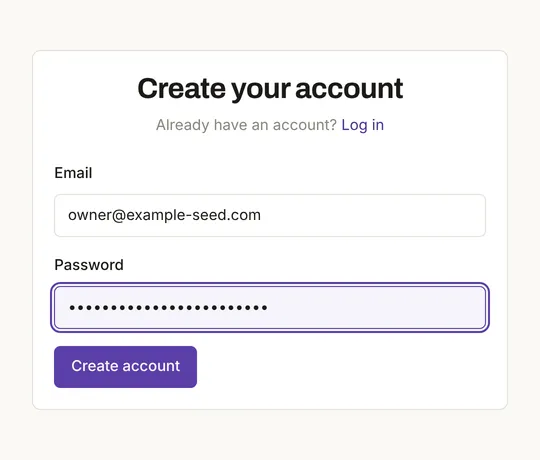
Signup then closes, so nobody else can create an account. This login is separate from your Mimeo account dashboard, where your license lives.
5 Connect your sending account
Email stays locked until your sending provider, your sending domain and a sender are connected.
On the dashboard, Get set up to send walks you through all three. Choose Postmark or Resend; to look around first, the built-in test provider records sends and delivers nothing.
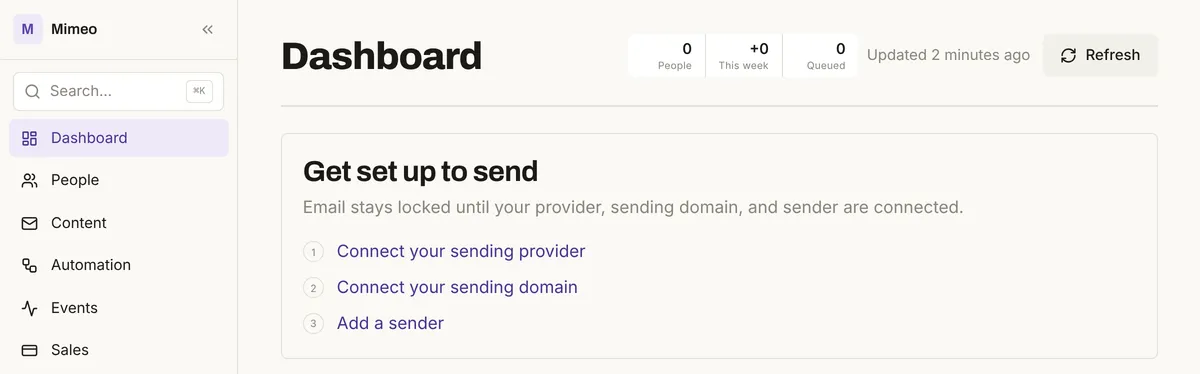
Set up sending covers each step, and Getting started covers what comes next.
Build it with your agent
1 Put the download in a private Git repository
Your agent can prepare the repository and check it before anything leaves your computer.
This folder is the Mimeo ZIP I just extracted. Turn it into a Git repository for a private GitHub repo: check that nothing secret and no database file is staged, then make the first commit. Don't push; I'll create the GitHub repo myself.
What to look for: no environment files, key files, database or uploads among the staged files. You create the private repository on GitHub and push.
2 Create the server and the app in Hatchbox
Your agent can't click in Hatchbox, but it can read the deploy docs and tell you what to pick.
I'm deploying Mimeo with Hatchbox on DigitalOcean. Using Mimeo's deploy docs at https://mimeohq.com/docs/usage/deploy, walk me through creating the server and the app, the settings and processes to add, and how to keep the database safe across deploys. Generate the secret key and save it to a file outside this folder without showing it in this chat.
What to look for: one server, no database server, the database folder kept across deploys, and the secret saved outside the repository and not printed. You click through Hatchbox's screens yourself.
3 Point your domain at the server and turn on HTTPS
The DNS change happens at your DNS provider, the certificate in Hatchbox.
My Mimeo will live at your-mimeo.com. Tell me which DNS record to add and how to turn on HTTPS in Hatchbox.
What to look for: a record pointing your address at the server, then the certificate in Hatchbox. Your agent can't change DNS for you unless you give it access.
4 Deploy and create your owner account
You create the owner account yourself, in the browser; your agent can confirm nobody else can.
I've deployed and created my owner account. Check that https://your-mimeo.com is up and that nobody else can sign up now.
What to look for: your Mimeo answering at your address, and the signup page sending visitors back to the login.
5 Connect your sending account
The sending setup is in your Mimeo's screens; your agent can tell you what to have ready.
What's left before I can send email, and what do I need from Postmark or Resend first?
What to look for: a provider, a sending domain and a sender, connected through Get set up to send. Once your Mimeo is running, the manager repo is where your agent works from.
Limits
The steps were run on a local install in production mode, not on Hatchbox.
- Not run: Hatchbox and DigitalOcean screens, DNS, certificates, a real deploy, backups and connecting a sending provider. Those follow the deploy docs and Hatchbox's own documentation.
- Not seen: buying a license, the License page and the real ZIP. A copy of the app at the same version stood in for the download.
- Not measured: server size, cost and timings.
- Not run: the agent-tab prompts. Each step shows the prompt and what to look for, not a captured reply.
Do it yourself or choose Setup & Launch
Do it yourself if you're comfortable with the steps above; choose Setup & Launch if you'd rather we did them.
| Do it yourself | Setup & Launch | |
|---|---|---|
| Cost | Your time, plus your server and sending provider | $999 flat, or $1,399 with the license |
| Who does it | You, or you and your agent | We deploy Mimeo on your server, connect your sender, authenticate your domain and import your list |
| Where it runs | Your server | Your server |
| How to start | The steps above | Contact us; it isn't on the buy page |
Either way, the server, the database and the list are yours.
When not to use this
Three cases call for something else.
Requirements and facts
Every requirement on this page, with its source and the date it was last checked.
| Fact | Value | Source | Checked |
|---|---|---|---|
| Release tested | Mimeo 0.3.1 | Release notes | |
| Server | Tested: one server runs the app, its background jobs and its database | Deploy Mimeo | |
| Software | Rails 8.0, Ruby 3.3.6, Node 22.12.0 | Deploy Mimeo | |
| Database | Tested: one SQLite file, empty at first. Documented: keep it across deploys and back it up | Deploy Mimeo | |
| Not needed | PostgreSQL, MySQL, Redis, a separate job server | Deploy Mimeo | |
| Secret key | Tested: required to start. Documented: keep it the same | Deploy Mimeo | |
| HTTPS | Tested: required | Deploy Mimeo | |
| Owner account | Tested: the first signup is the owner; signup then closes | Deploy Mimeo | |
| Sending account | Postmark or Resend; Amazon SES coming soon; a test provider that delivers nothing | Sending providers | |
| Setup & Launch | $999 flat, or $1,399 with the license | Pricing |
Read next
The docs have every command and setting.
- Pricing: the license, what it includes and what you need to run Mimeo.
- Deploy Mimeo: every command and setting, step by step.
- Set up sending and Getting started: from your first login to your first test send.
- Manager repo: where your agent works once Mimeo is running.
- Let an AI agent run your email without accidental sends: the checks to set up before your agent changes anything.